
Seeing “Windows protected your PC”?
Here’s how to continue.
Windows Defender SmartScreen may show this message when you run the Kenesto Drive installer. It takes two clicks to get past it and finish the installation.
Install Kenesto Drive past SmartScreen
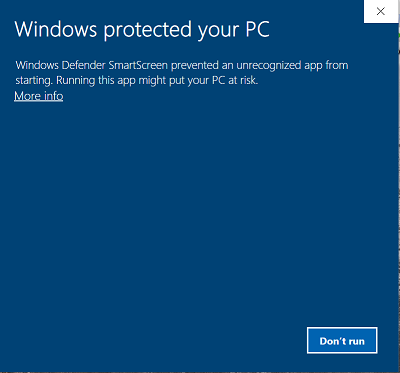
Click “More info”
When the blue Windows protected your PC window appears, don’t click “Don’t run”. Click the More info link under the message instead.
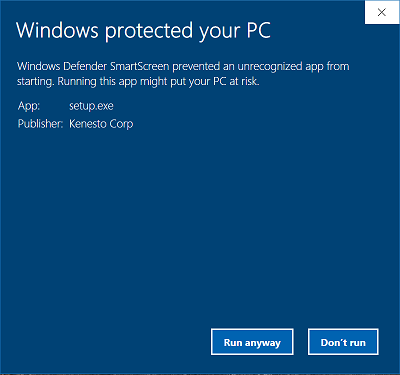
Select “Run anyway”
Check that the publisher is listed as Kenesto Corp, then click Run anyway. The Kenesto Drive installation will start as usual.
Still have questions?
Why does this appear?
SmartScreen shows this warning for apps it doesn’t yet recognize. Confirming the publisher is Kenesto Corp lets you continue with confidence.
No “Run anyway” button?
Your organization’s IT policy may block unrecognized apps. Ask your IT administrator to approve the Kenesto Drive installer.
Need a hand?
Our team is happy to help with installation. Contact Kenesto Support →
Your Files. Your Rules. Always Under Control.
Try Kenesto free for 14 days. Unlimited storage, no credit card required.